Lab S01 — Splunk and Sysmon
Install and configure Sysmon on a Windows 10 endpoint, deploy the Splunk Add-on for Microsoft Sysmon, forward Sysmon event logs to Splunk Enterprise, and query your first Sysmon events.
Download Lab DocumentPrerequisites
Complete Lab S00 before starting this lab. You will need a working Splunk Enterprise instance on Ubuntu 22.04 with a Universal Forwarder already configured on Windows 10.
This lab was tested using an Ubuntu 22.04 Virtual Machine and a Windows 10 Virtual Machine in Synology VMM. It should work for nearly any local network environment using the same operating systems, virtual or bare metal.
Introduction
Sysmon debuted in 2014 and was developed by Mark Russinovich, with contributions from Tomas Garnier, David Magnotti, Mark Cook, Rob Mead, Giulia Biagini, and others at Microsoft. It is part of the Sysinternals Suite — originally owned by Russinovich and Bryce Cogswell under the NTInternals website, then acquired by Microsoft in 2006.
System Monitor (Sysmon) is a Windows system service and device driver that monitors and logs system activity.
Sysmon tracks network traffic, code behavior, and file system changes to detect malicious activity. It provides detailed information about system activity, including process creations, network connections, and file creation times.
Sysmon is installed once and remains resident across system reboots. It adds new Event IDs to Windows systems, which system administrators can use to monitor system processes, network activity, and files.
Sysmon is a cost-effective way to gain insight into what's happening on a system. It provides a more detailed view of system activity than the standard Windows security logs.
Sysmon is often installed alongside other endpoint defense solutions, such as antivirus or Endpoint Detection and Response (EDR). Sysmon serves as telemetry, while EDR is equipped to detect malicious activities and respond proactively.
Sysmon is part of the Sysinternals software package, which is now owned by Microsoft.
Sysmon on Splunk Enterprise on Ubuntu 22.04
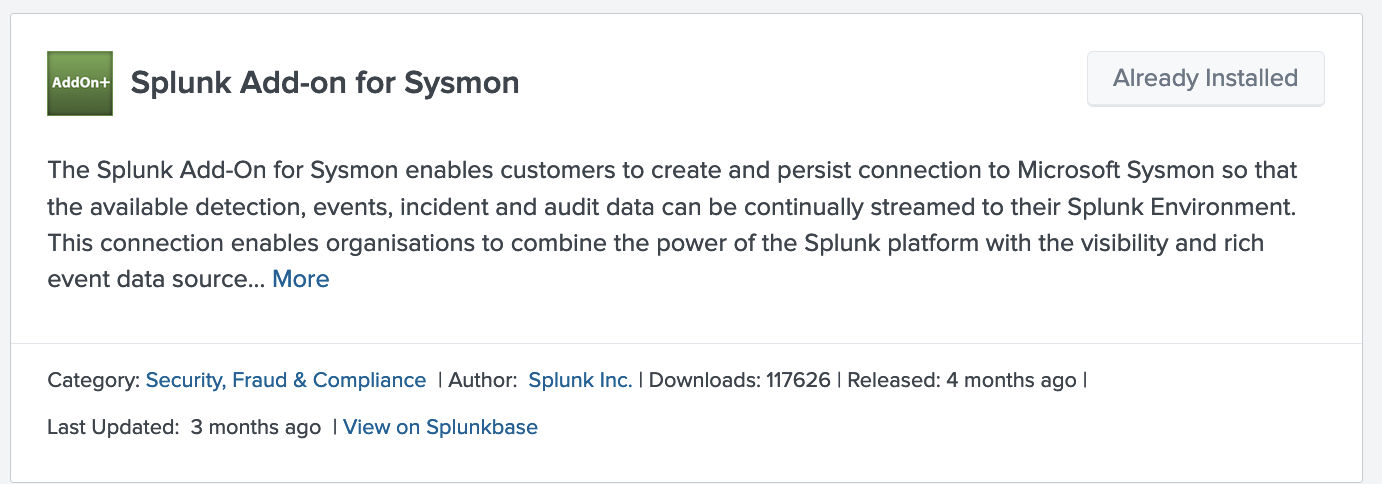
In your Splunk Enterprise Web UI, open the Apps dropdown and select Find More Apps. Search for Sysmon and install Sysmon App for Splunk.
Make Sysmon for Splunk Deployable. After installation, Splunk_TA_microsoft_sysmon must be manually copied to the deployment-apps folder so the Deployment Server can push it to your forwarder. Run the following on your Ubuntu VM:
$SPLUNK_HOME refers to /opt/splunk in the Ubuntu 22.04 environment.
Create a Server Class for Sysmon. In the Web UI go to .
Name the server class (e.g. WinSysmon_Server), add Splunk_TA_microsoft_sysmon under Add Apps, and add your Windows 10 VM under Clients. This distributes the app folder to the forwarder(s) you've specified.
WinSysmon_Server rather than the index name to avoid confusion.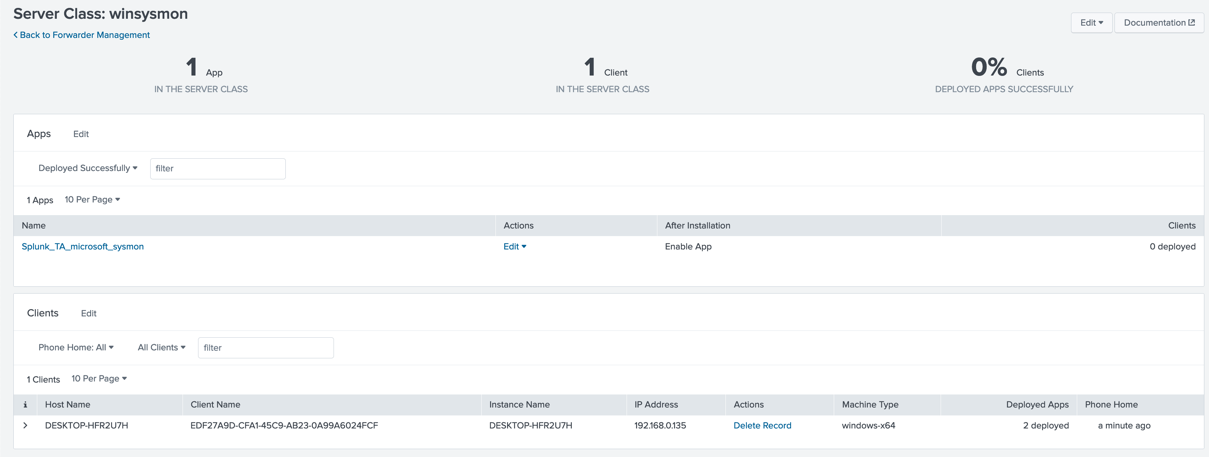
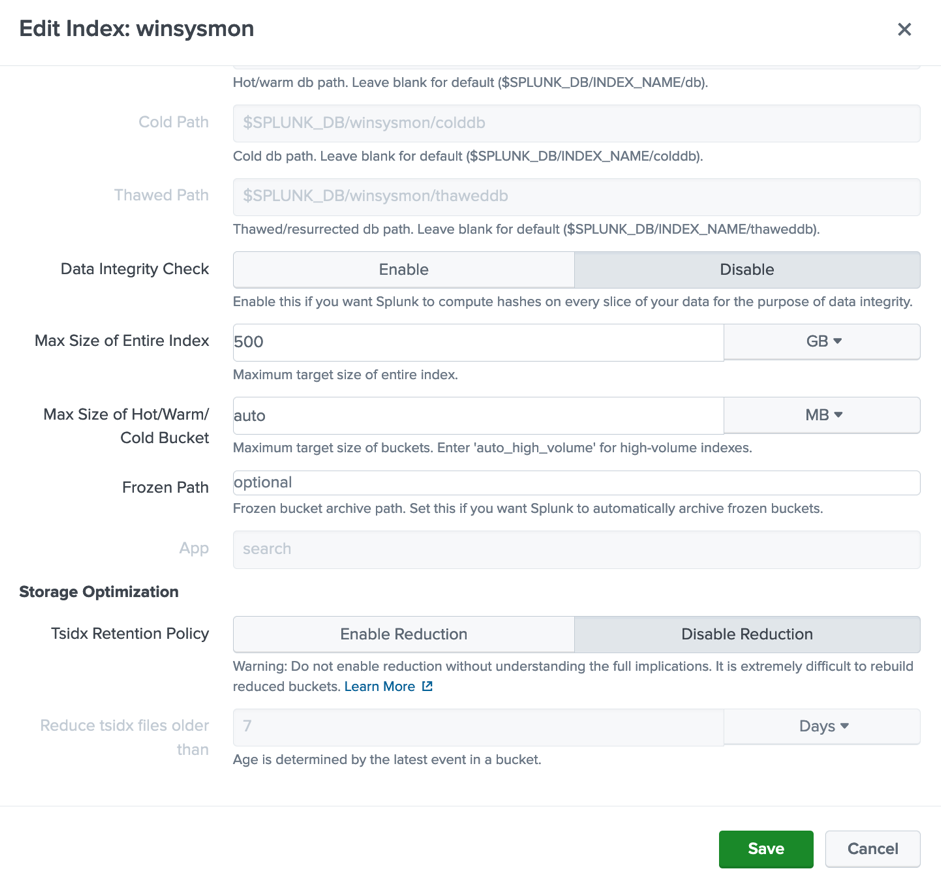
Create an Index. In the Web UI go to . Name it winsysmon, set the App to search, and leave the remaining settings at their defaults.

Edit the Data Input index. The previous steps automatically added new Data Inputs to your Forwarded Inputs. Go to — you should now see Windows Event Logs has 2 inputs.
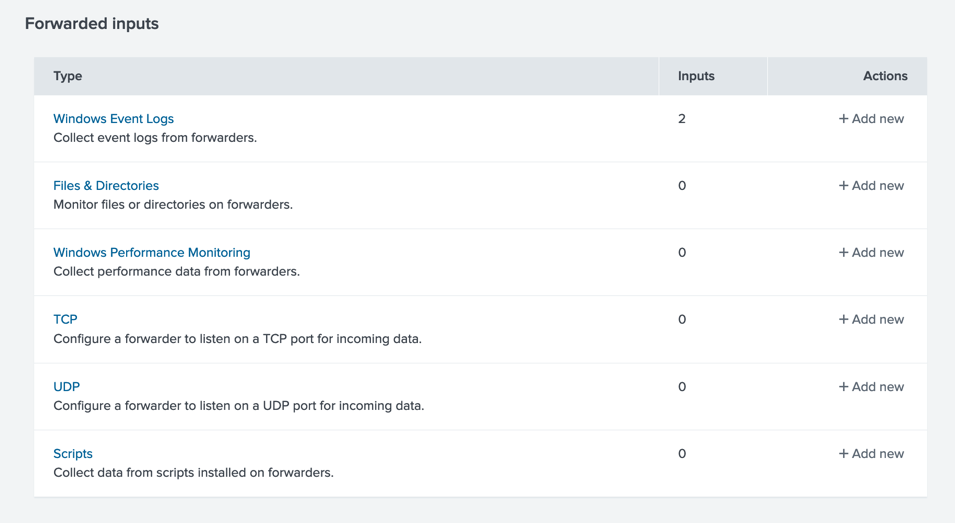
Under Forwarded Inputs → Windows Event Logs, select Microsoft-Windows-Sysmon/Operational and change the index to winsysmon.
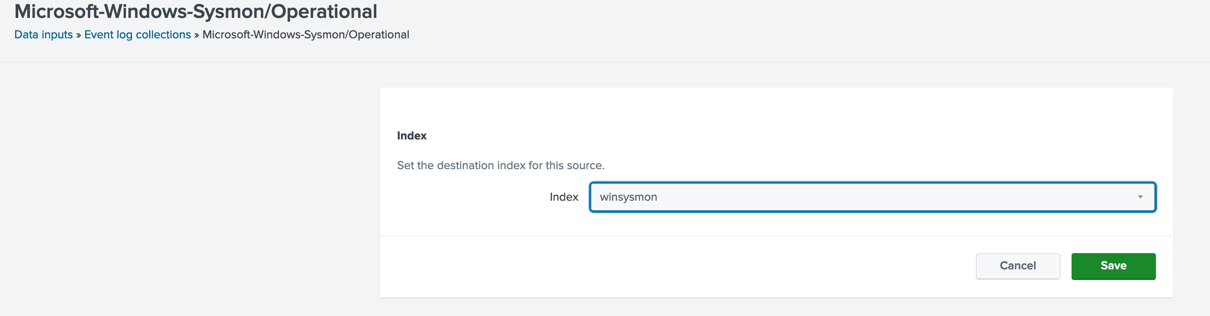
Save and confirm the event log collector is enabled. Select Event log collections in the Path in the top left of the UI panel to verify the index configuration.

Windows Sysmon Installation on Windows 10 22h2
On your Windows 10 VM, download Sysmon.zip from Microsoft's Sysinternals page. Extract the archive, then install Sysmon using the -accepteula and -i flags:

Confirm Sysmon Events are being collected. Open Event Viewer to verify Sysmon is logging events.
Open the Run dialog (Win + R or search for "Run"), type eventvwr.msc, and press OK. Alternatively, search for Event Viewer in the taskbar search bar.
In the left panel: expand Applications and Services Logs → Microsoft → Windows → Sysmon → Operational.
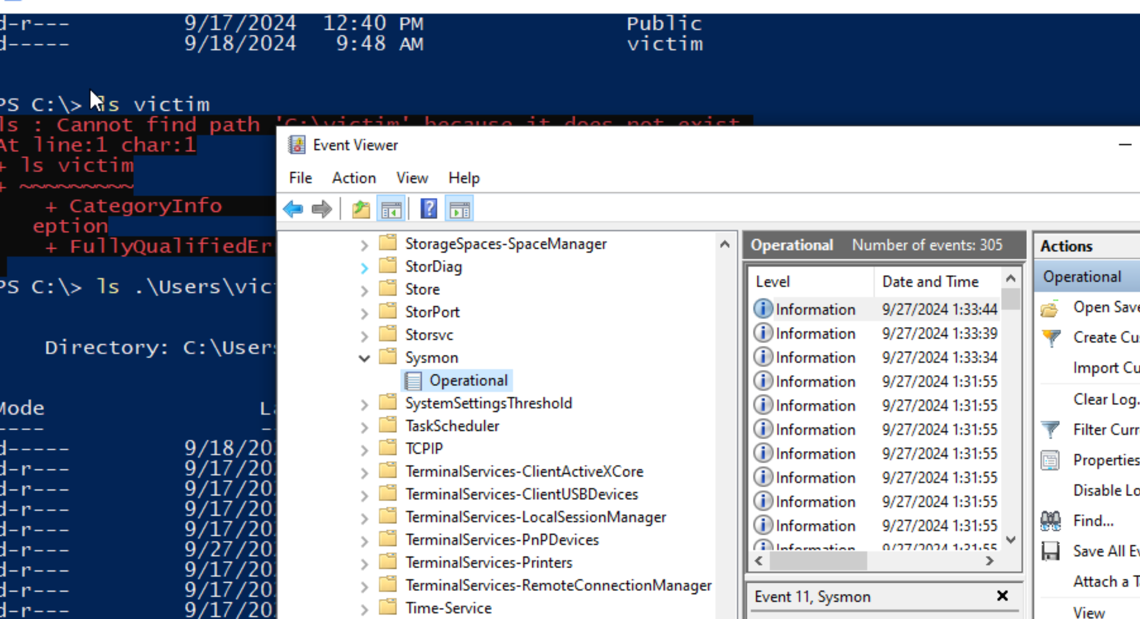
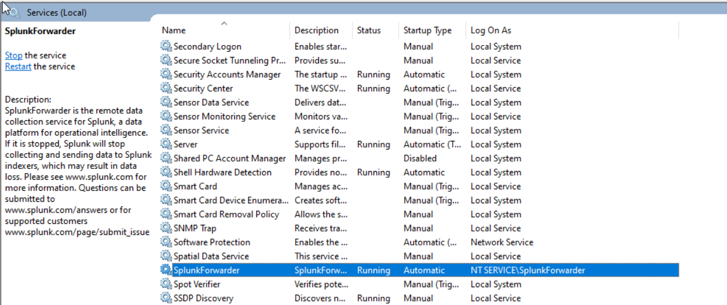
Add Splunk to the Event Log Readers group. The Splunk Universal Forwarder runs as the NT Service\SplunkForwarder account and needs read access to the Sysmon event log.
NT Service\SplunkForwarder account to this group.
The NT Service\SplunkForwarder user is visible in Task Manager → Details and under Windows Services, but may not be identifiable by standard lusrmgr.msc.
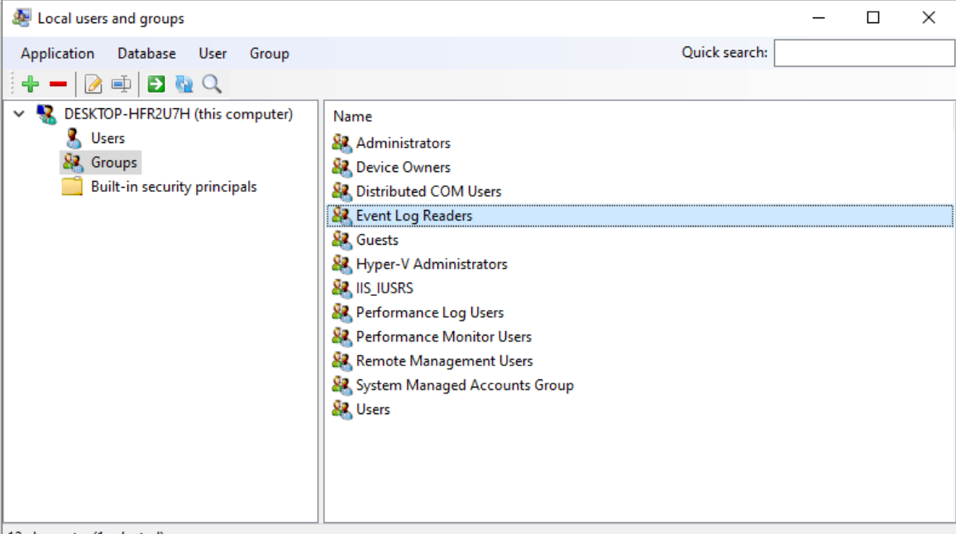
Lusrmgr is recommended for managing local groups in this lab. Download it from github.com/akruhler/AccountManagement — scroll down to download version 1.6.3, then run the executable as Administrator.

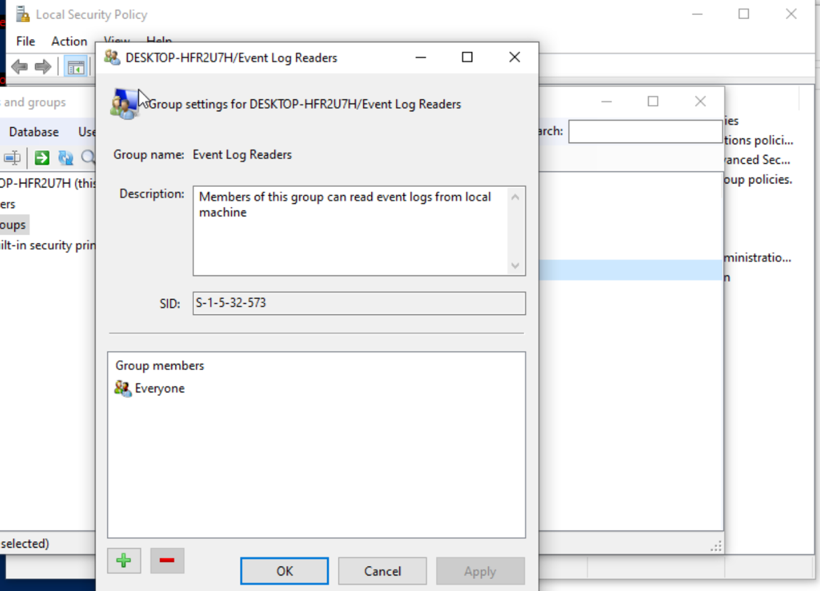
In Lusrmgr, go to Groups → Event Log Readers and double-click. Select the Green Plus (+) button and add Everyone to the group members.
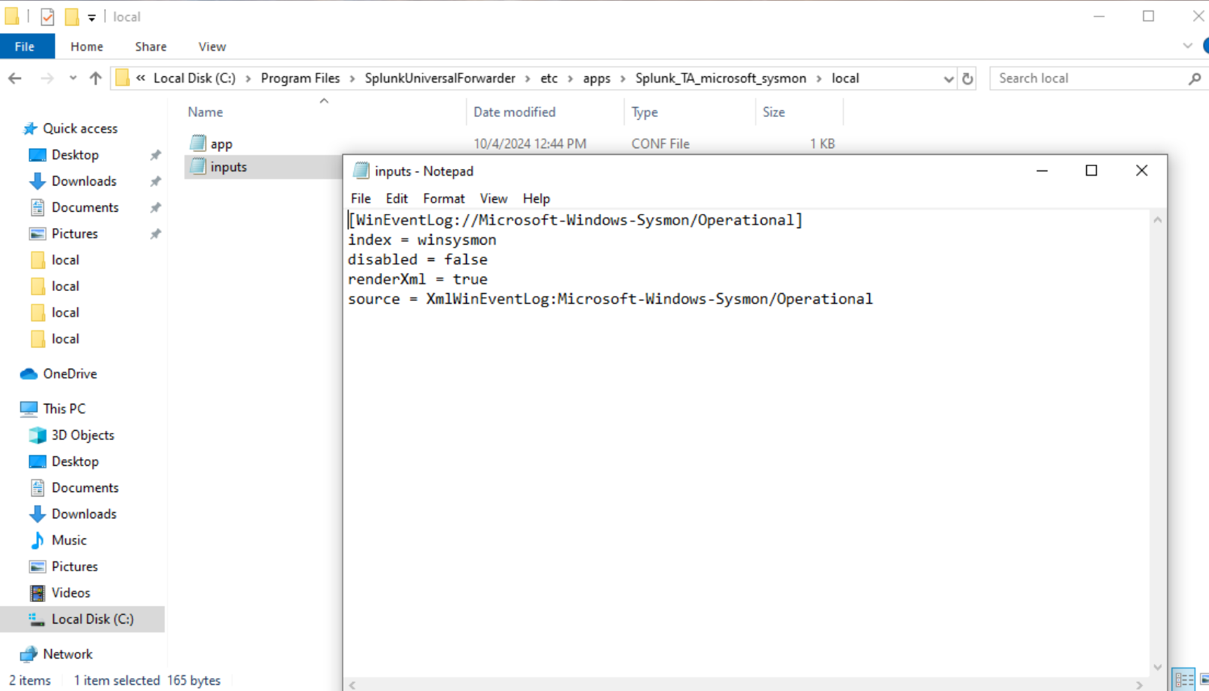
Configure Splunk_TA_microsoft_sysmon. Open Notepad and create a file with the following content:
Save this file as inputs.conf to the following path on your Windows VM:
Restart the Universal Forwarder to apply the configuration:
Confirm Sysmon Logs in Splunk
Back in the Splunk Enterprise Web UI, go to and run the following query to confirm Sysmon events are being indexed:
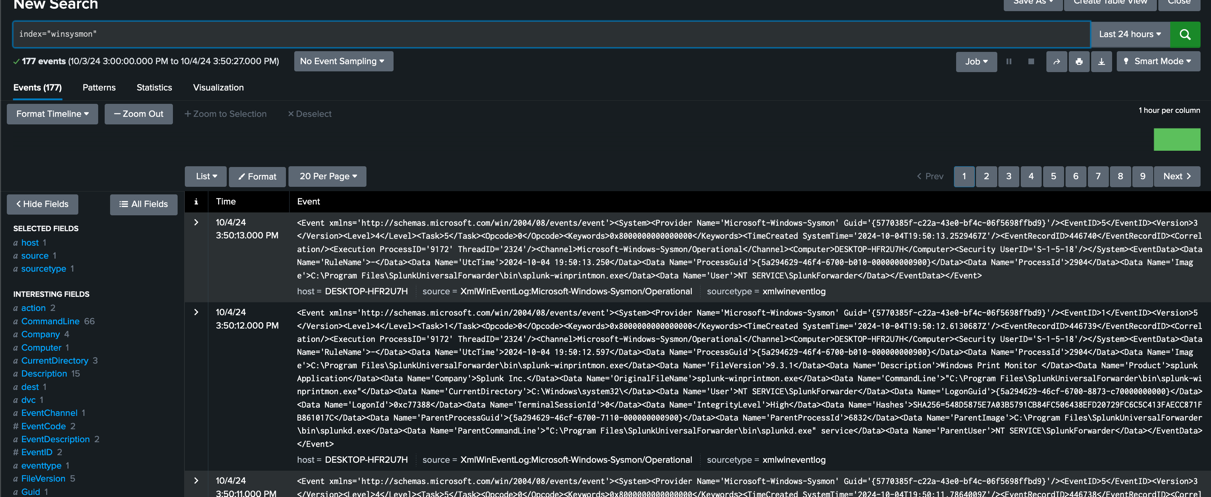
You should see Sysmon events populating the winsysmon index. From here you can use Splunk's Search Processing Language (SPL) to parse and format the indexed data, and explore potential issues identifiable from Sysmon traffic events.
For more on SPL, see the Getting Started with Search documentation.