Lab S02 — Splunk and Zeek
Install Zeek on Ubuntu 22.04, configure JSON logging, and forward Zeek network logs to Splunk Enterprise.
Download Lab DocumentPrerequisites
Complete Lab S00 before starting this lab. You will need a working Splunk Enterprise instance on Ubuntu 22.04.
This lab was tested using an Ubuntu 22.04 Virtual Machine in Synology VMM. It should work on most local network environments using the same operating system, virtual or bare metal.
Introduction — What is Zeek?
Zeek (formerly Bro) is a free, open-source network security monitoring and analysis tool. Originally developed by Vern Paxson at Lawrence Berkeley National Lab in 1995, it was renamed from Bro to Zeek in 2018. Zeek is considered less beginner-friendly than tools like Suricata because it requires scripting knowledge for advanced use cases.
Zeek analyzes traffic to detect anomalies and suspicious signatures — DNS, HTTP, FTP activity and more.
Zeek can auto-download suspicious files and blacklist IPs as part of an automated incident response workflow.
Zeek supports custom scripting for in-depth monitoring, allowing security teams to tailor detection logic to their environment.
Deploy on-premises, in the cloud, or out-of-band. Zeek outputs metadata and extracted files in multiple formats.
Zeek App in Splunk
In your Splunk Web UI, open the Apps dropdown and select Find More Apps. Search for and install both TA_for_zeek and Zeek App for Hunting.
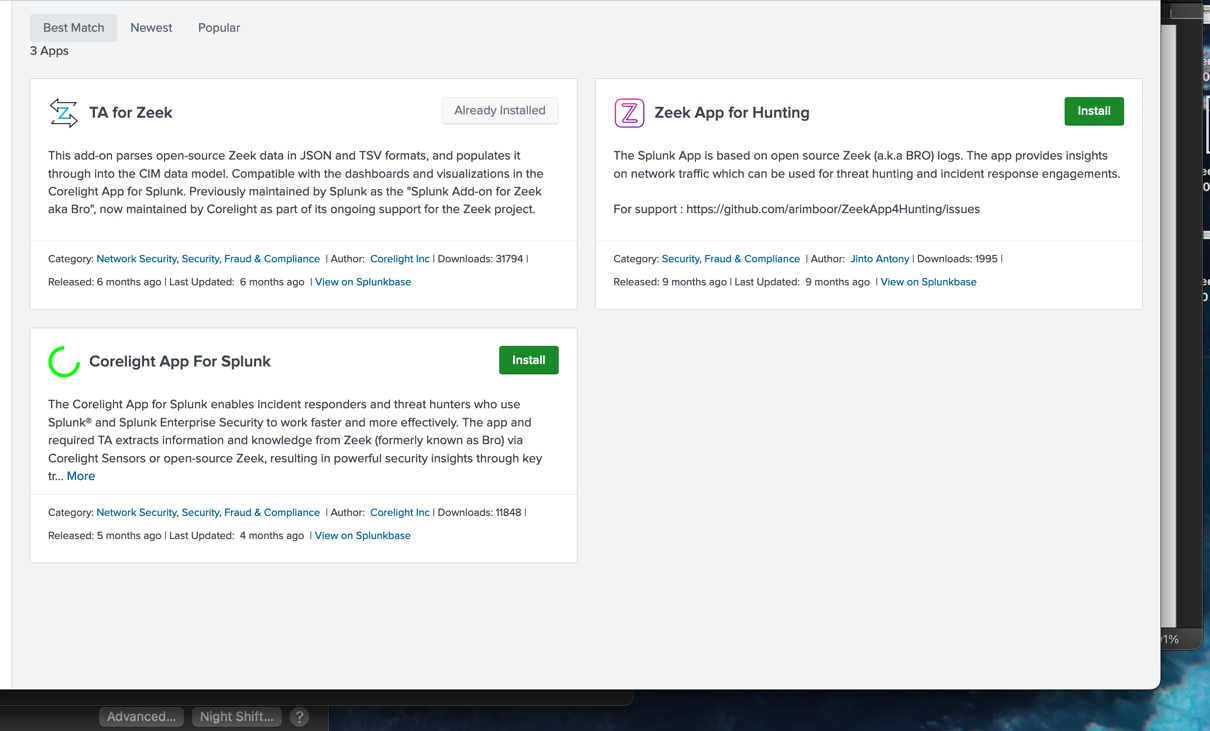
Create a new index called zeek. Assign it to the Zeek App for Threat Hunting and leave all other settings at their defaults.

Install and Configure Zeek on Ubuntu 22.04
$ZEEK_HOME refers to /opt/zeek throughout this section.Install Zeek from the OpenSUSE repository by running the following commands on your Ubuntu 22.04 VM:
When prompted for a Mail server configuration, select No Configuration.
Add Zeek to your PATH so you can run Zeek commands without specifying the full path each time:
Find your network interface with ip address, then edit the Zeek node configuration file to set your interface:
Set the configuration as follows (replace eno2 with your actual interface name):
Enable JSON logging by adding the following lines to the bottom of /opt/zeek/share/zeek/site/local.zeek:
Add to the bottom of the file:
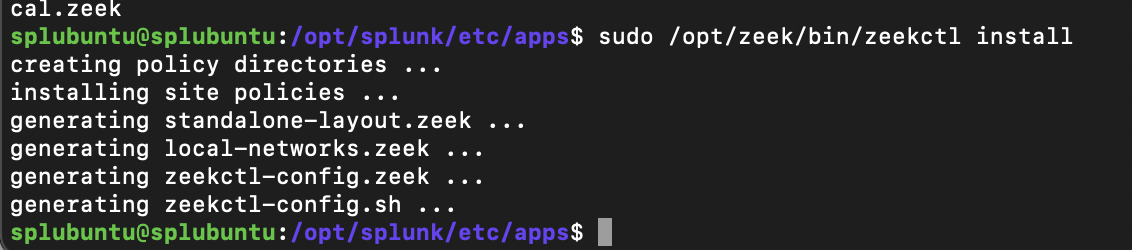
Install and start Zeek using zeekctl:
Confirm that logs are being generated by checking the $ZEEK_HOME/spool/zeek folder.

Automate Zeek and Configure Splunk Inputs
Create a systemd service so Zeek starts automatically on boot. First stop the current Zeek process:
Create the systemd service file:
Add the following contents:
Then start the service:
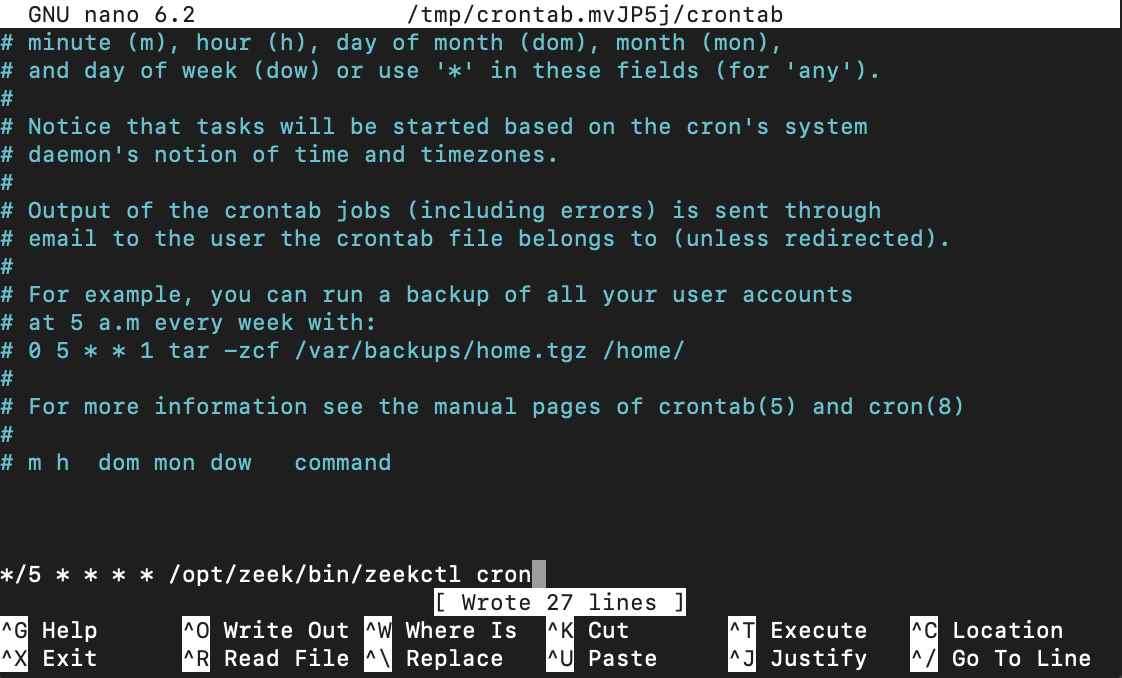
Set up a cron job to run zeekctl cron every 5 minutes. This is required for Zeek's log rotation to function correctly:
Add the following line:
The cron command-line utility is a job scheduler on Unix-like operating systems. The cron daemon checks scheduled tasks every minute.
Configure Splunk to monitor Zeek logs. Add the following to /opt/splunk/etc/system/local/inputs.conf (create the file if it does not exist):
Add the following content:

Restart Splunk, then verify data is arriving in the zeek index by running the following search in :