Intermediate Splunk MITRE

Lab S04 — Splunk Attack Data & Postfix MTA

Ingest Atomic Red Team attack datasets into Splunk, perform detection analysis, then build a Postfix mail server for Splunk alert delivery.

~90 min Ubuntu 22.04 6 Sections
Download Part A Download Part B
Progress
0 / 6

Prerequisites

1

Complete Lab S00 before starting this lab. You will need a working Splunk Enterprise instance on Ubuntu 22.04.

2

This lab was tested using an Ubuntu 22.04 Virtual Machine in Synology VMM.

Introduction

Part A — Attack Data Ingest

This lab uses Atomic Red Team (ART), an open-source testing framework, to ingest simulated attack datasets into Splunk. The attack data is sourced from the Splunk attack_data GitHub repository: https://github.com/splunk/attack_data. We focus on T1003.002 — a SAM database credential dump technique.

Part B — Postfix MTA

Build a Postfix Mail Transfer Agent on Ubuntu to receive Splunk alert emails. Covers SMTP, TLS certificates, SASL authentication with Dovecot, and creating alert rules in Splunk.

Part A — Setup & Download Attack Data

1

Create a new index called test under Settings → Indexes.

2

Clone the attack_data repo with git LFS (--skip-smudge to avoid downloading all 10 GB):

git clone https://github.com/splunk/attack_data.git sudo apt install git-lfs git lfs install --skip-smudge cd attack_data
Note: --skip-smudge skips automatic downloading of large files on clone — requires manual git lfs pull per commit.
3

Edit the replay config:

nano bin/replay.yml

Remove all but Sysmon logs, set your Splunk admin credentials and change the index from main to test.

4

Set up a Python virtualenv and run the replay:

pip install virtualenv virtualenv venv source venv/bin/activate pip install -r bin/requirements.txt

Execute the replay script. Search the index for all time since these events were collected historically.
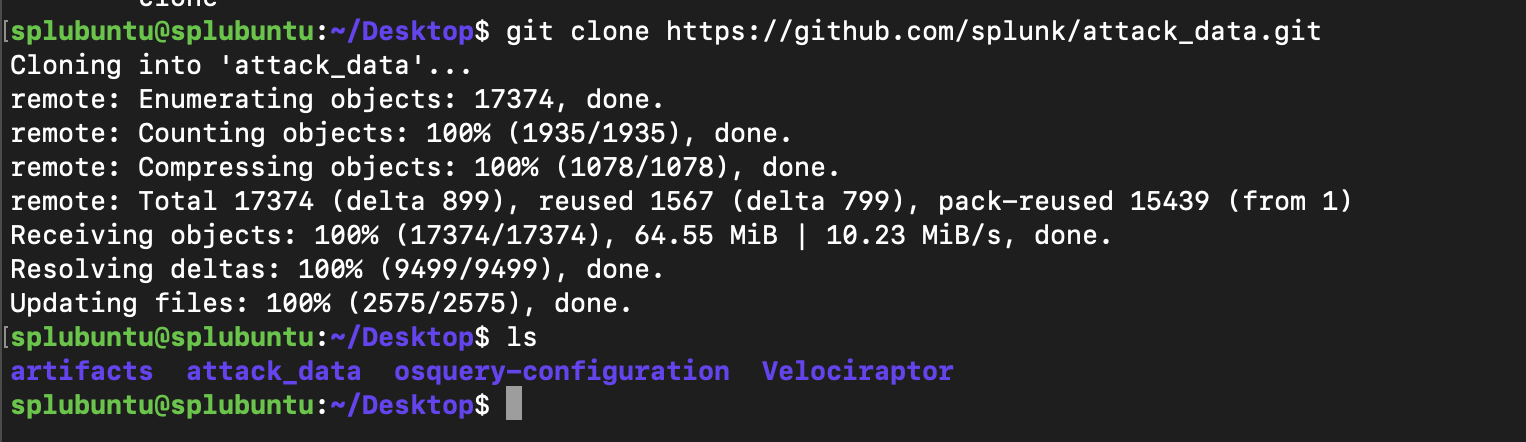
Replay script execution

Part A — Detection & Analysis

1

Search for PowerShell execution — the T1003.002 dataset involves pypykatz credential dumping:

index=test2sourcetype="Powershell" EventCode=4104 CommandLine IN ("Invoke-Mimikatz", "*pypykatz*")
Note: pypykatz (a Python implementation of Mimikatz) running on a system is a strong indicator of malicious activity.
PowerShell pypykatz search results
2

Identify encoded command lines. Encoded PowerShell commands (-encodedcommand) hide malicious intent. Use https://www.base64decode.org to decode captured Base64 commands.

3

Find child processes of suspicious parent processes:

index=test2[search index="test" parent_process_exec="powershell.exe" CommandLine="*EncodedCommand*" | fields process_id | rename process_id as parent_process_id]
4

Detect LSASS access (Event ID 10 — ProcessAccess):

index="test" EventCode=10 parent_process_exec="lsass.exe"

LSASS stores credentials in memory — a common attack target. Esentutl may be used to create volume shadow copies of the SAM database.

LSASS access detection
5

Check for file deletion covering tracks:

index="test" | search del

Look for deletion of sam, system, and security from the %temp% folder.

File deletion search
6

Investigate DNS exfiltration:

index="test" | search DNS

Look for T1071.004 DNS beacon/domain-length scripts.
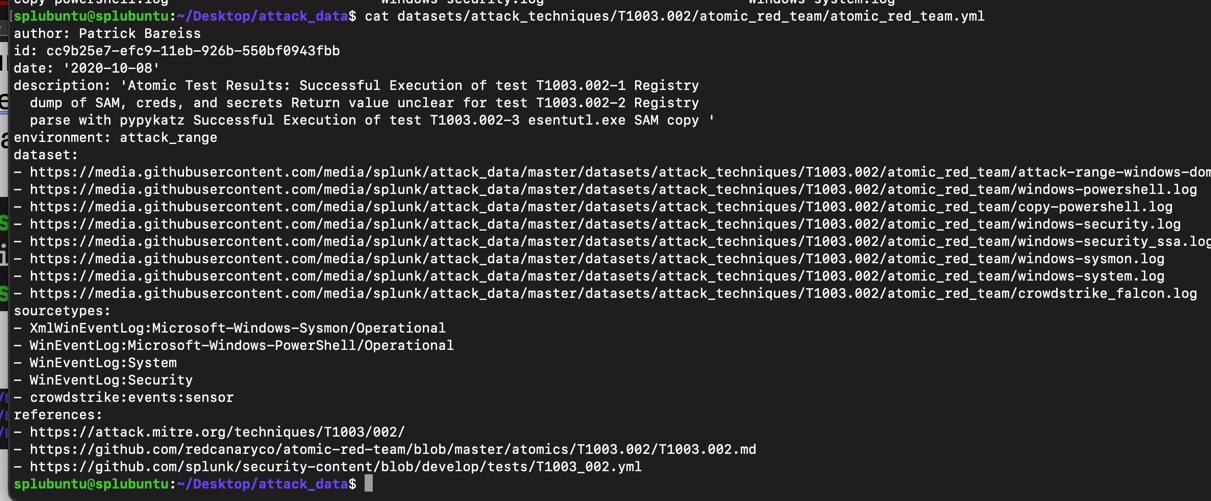
DNS exfiltration investigation

Part B — Postfix MTA Setup

1

Set a fully qualified domain name. Edit /etc/hosts and /etc/hostname to set your hostname (e.g., splubuntu.lan). Verify with dnsdomainname.

2

Open port 25 and install Postfix:

sudo ufw allow 25 sudo apt update && sudo apt install postfix mailutils

During install select Internet Site and enter your mail domain (e.g., splubuntu.lan).

3

Create a user for incoming mail and set up mailboxes for both the system user and the incoming account:

sudo useradd -m -s /bin/bash incoming sudo passwd incoming sudo touch /var/mail/splubuntu sudo chmod ug+rw /var/mail/splubuntu sudo chown splubuntu /var/mail/splubuntu sudo touch /var/mail/incoming sudo chmod ug+rw /var/mail/incoming sudo chown incoming /var/mail/incoming
4

Test basic mail delivery via telnet:

telnet localhost 25 ehlo localhost mail from: splubuntu@splubuntu.lan rcpt to: incoming@splubuntu.lan data Subject: Re: Some issue Sounds good! .
5

Set the home mailbox path then enable SMTP-AUTH using Dovecot SASL:

sudo postconf -e 'home_mailbox = /var/mail/' sudo postconf -e 'smtpd_sasl_type = dovecot' sudo postconf -e 'smtpd_sasl_path = private/auth' sudo postconf -e 'smtpd_sasl_local_domain =' sudo postconf -e 'smtpd_sasl_security_options = noanonymous,noplaintext' sudo postconf -e 'smtpd_sasl_tls_security_options = noanonymous' sudo postconf -e 'broken_sasl_auth_clients = yes' sudo postconf -e 'smtpd_sasl_auth_enable = yes' sudo postconf -e 'smtpd_recipient_restrictions = permit_sasl_authenticated,permit_mynetworks,reject_unauth_destination'

Generate TLS certificates and install them:

mkdir certs && cd certs openssl genrsa -des3 -out server.key 2048 openssl rsa -in server.key -out server.key.insecure mv server.key server.key.secure && mv server.key.insecure server.key openssl req -new -key server.key -out server.csr openssl x509 -req -days 365 -in server.csr -signkey server.key -out server.crt sudo cp server.crt /etc/ssl/certs sudo cp server.key /etc/ssl/private

Set up a local Certificate Authority (CA) directory structure to track serial numbers and issued certificates:

sudo mkdir /etc/ssl/CA sudo mkdir /etc/ssl/newcerts sudo sh -c "echo '01' > /etc/ssl/CA/serial" sudo touch /etc/ssl/CA/index.txt

Edit the [ CA_default ] section of /etc/ssl/openssl.cnf:

sudo nano /etc/ssl/openssl.cnf

Set the following values in the [ CA_default ] block:

dir = /etc/ssl # Where everything is kept database = $dir/CA/index.txt # database index file. certificate = $dir/certs/cacert.pem # The CA certificate serial = $dir/CA/serial # The current serial number private_key = $dir/private/cakey.pem# The private key

Create the self-signed root CA certificate. You will be prompted for a passphrase — remember it, you will need it when signing the server cert:

openssl req -new -x509 -extensions v3_ca -keyout cakey.pem -out cacert.pem -days 3650

Install the CA root certificate and private key:

sudo mv cakey.pem /etc/ssl/private/ sudo mv cacert.pem /etc/ssl/certs/

Sign the server certificate with the CA (use the passphrase from above when prompted). Enter y twice — once to sign and once to commit:

sudo openssl ca -in server.csr -config /etc/ssl/openssl.cnf

The CA-signed certificate is saved at /etc/ssl/newcerts/01.pem.

Configure TLS in Postfix:

sudo postconf -e 'smtp_tls_security_level = may' sudo postconf -e 'smtpd_tls_security_level = may' sudo postconf -e 'smtp_tls_note_starttls_offer = yes' sudo postconf -e 'smtpd_tls_key_file = /etc/ssl/private/server.key' sudo postconf -e 'smtpd_tls_cert_file = /etc/ssl/certs/server.crt' sudo postconf -e 'smtpd_tls_loglevel = 1' sudo postconf -e 'smtpd_tls_received_header = yes' sudo postconf -e 'myhostname = splubuntu.lan' sudo postconf -e 'smtpd_tls_CAfile = /etc/ssl/certs/cacert.pem'

Install Dovecot. Edit /etc/dovecot/conf.d/10-master.conf and add the following block inside service auth { }:

sudo apt install dovecot-core
unix_listener /var/spool/postfix/private/auth { mode = 0660 user = postfix group = postfix }

In /etc/dovecot/conf.d/10-auth.conf set auth_mechanisms = plain login. Then in /etc/postfix/main.cf change smtpd_sasl_security_options to noanonymous (removes noplaintext — required for Splunk's plain login). Restart both services:

sudo systemctl restart postfix.service sudo systemctl restart dovecot.service
Note: Check /var/log/mail.log or journalctl -xeu postfix.service for debugging.
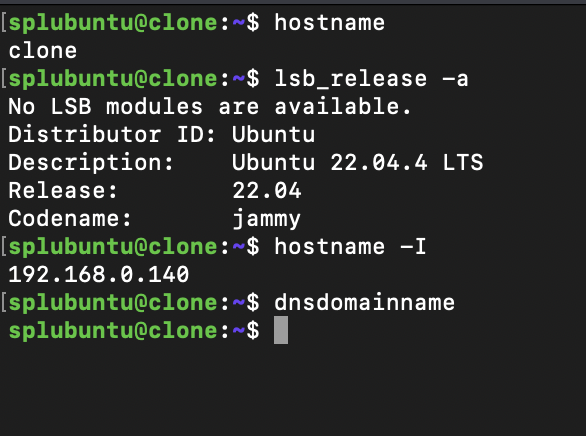
Postfix and Dovecot configuration

Part B — Splunk Alerts via Email

1

In Splunk Settings → Email Settings, configure the SMTP host with your splubuntu.lan hostname, username, and password.

2

Create alert queries for the attack patterns found in Part A:

index = test2CommandLine="*esentutl.exe /y /vss*" *SAM*
index = test2CommandLine="*install pypykatz*"
index = test2CommandLine="*reg save*"
3

Save the volume shadow copy query as a Splunk Alert. Set it to run on a schedule (cron: every minute for testing) on All Time.
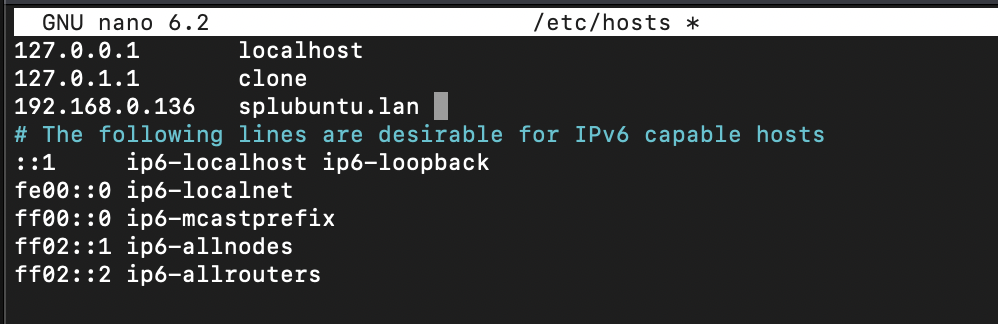
Splunk alert configuration
4

When the alert fires, check the mailbox of the incoming user:

mail

You should receive the triggered alert email.