Lab S08 — Detection and Incident Response
Deploy Atomic Red Team from Kali Linux to emulate a real adversary, then detect, analyze, and respond to MITRE ATT&CK T1518.001 (Security Software Discovery) using Splunk.
Prerequisites
You need three virtual machines running simultaneously:
- Splunk Enterprise on Ubuntu VM (e.g.,
192.168.0.136) - Kali Linux attacker VM (e.g.,
192.168.0.132) - Windows 10 victim VM with Splunk Universal Forwarder (e.g.,
192.168.0.135)
Download a Kali Linux image from kali.org/get-kali and import it into your VM software if you have not already done so.
Introduction
Part A focuses on the configuration and deployment of Atomic Red Team (ART) from a Kali Linux machine to a Windows 10 host in a controlled lab environment, simulating remote post-exploitation activities. The objective is to prepare the environment for testing MITRE ATT&CK technique T1518.001 (Security Software Discovery) by setting up remote execution using winexe, SMB file transfer, and PowerShell.
A PowerShell script is compiled into a Windows executable using .NET on Kali and served via an NGINX web server to the target host. This script reconfigures the target to allow WinRM and SMB-based communication, opens firewall ports, and enables legacy protocols for full test compatibility. ART modules and atomic test payloads are then transferred to the target using smbclient.
Part B examines the detection and analysis of T1518.001 executed remotely via winexe from Kali targeting the Windows 10 system. This technique simulates post-compromise reconnaissance where an adversary identifies installed security defenses. Using Sysmon logs ingested by Splunk, you will detect relevant command-line executions — including chained commands via cmd.exe, netsh.exe, sc.exe, and PowerShell-based AV discovery — then perform a full incident response cycle.
- Windows 10 victim:
192.168.0.135 - Kali attacker:
192.168.0.132 - Splunk instance:
192.168.0.136
Adjust these IPs to match your own lab network. The Splunk IP is only used for web UI access as in previous labs.
Part A — Kali Dependencies & ART Installation
Update your Kali VM and install the required tools: smbclient, winexe, and PowerShell for Linux.
winexe comes pre-installed on Kali; if not, sudo apt install winexe will redirect to samba-common-bin.Launch PowerShell Core on Kali:
Inside pwsh, retrieve and install the Invoke-AtomicRedTeam module and the atomics folder:
Verify the installation by running a local atomic test:
If Invoke-AtomicTest is not found, import the module manually:
To list all atomics available for your current platform:
powershell-yaml, run: Install-Module powershell-yaml -Scope CurrentUser -ForceRed Canary provides a Getting Started guide for Atomic Red Team. Refer to it for additional context on how atomics are structured.

Part A — Remote Setup & Payload Delivery
A PowerShell script needs to be compiled into a Windows executable using .NET on Kali. This script, when run on the victim machine, will open WinRM, enable SMBv1, configure firewall ports, and prepare the system for remote ART execution. Refer to the Part A lab document for the full script contents.
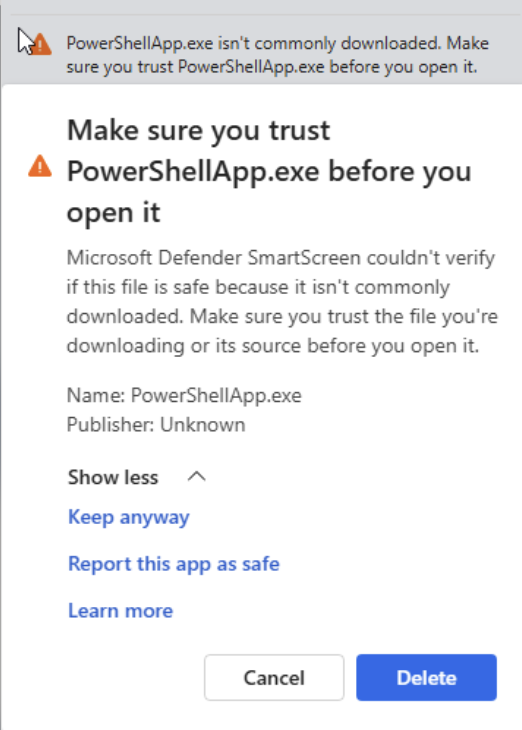
Serve the compiled executable via NGINX on your Kali machine so the Windows target can download it over HTTP. Start NGINX and verify it is reachable from the victim machine:
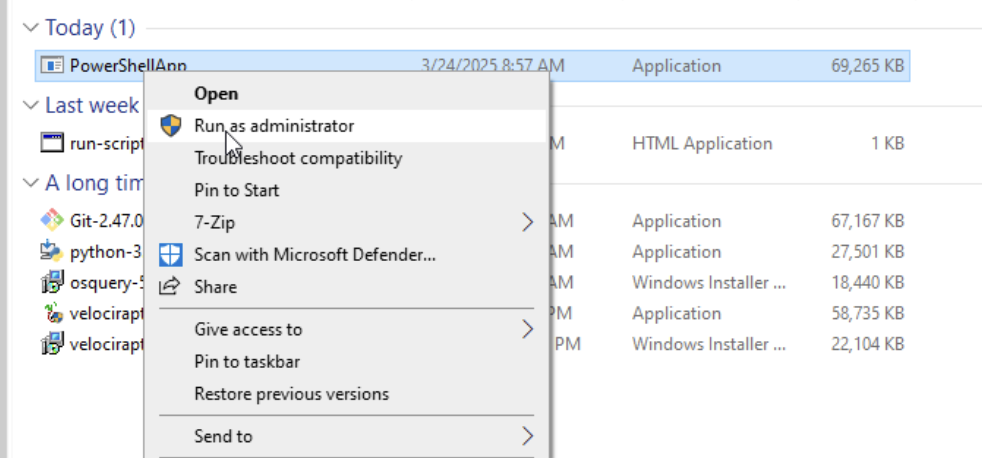
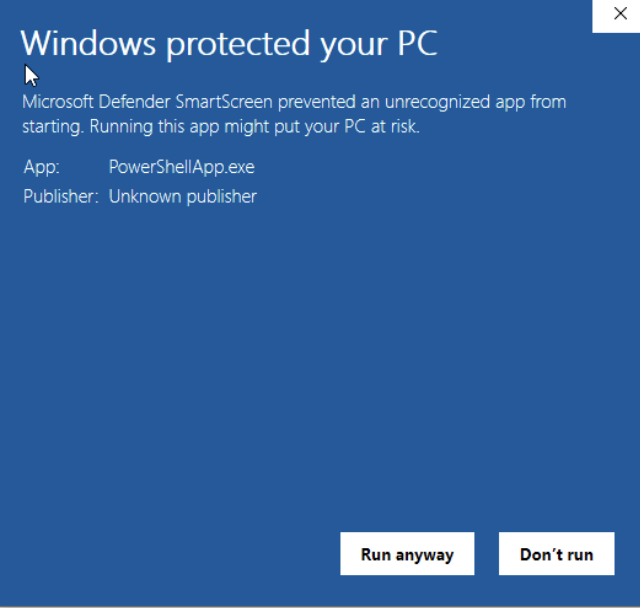
From the Windows 10 victim machine, download and run the executable. This reconfigures the target for remote access. Refer to the Part A document for the exact PowerShell download command using Invoke-WebRequest.
From Kali, test that remote execution works using winexe:

Transfer the ART modules and the specific T1518.001 atomic payload to the Windows victim using smbclient. Place them under C:\Users\Public\AtomicRedTeam\ on the target. Verify the files are present before proceeding to Part B.

Part B — Execute ART & Map Output
From Kali, execute MITRE ATT&CK T1518.001-1 remotely on the victim via winexe:
The output will be several hundred lines long, enumerating security software, firewall rules, and AV status on the target.
Map the output sections to the underlying commands executed by the atomic test. The key commands run are:
netsh.exe firewall show config— firewall confignetsh.exe advfirewall show allprofiles— all profile settingsnetsh.exe advfirewall firewall show rule name=all— all rulesnetsh.exe advfirewall show currentprofile— current profilesc query windefend— Windows Defender service statusGet-Process | Where-Object { $_.ProcessName -eq 'Sysmon' }— Sysmon detectionGet-Service | Where-Object { $_.DisplayName -like '*Sysmon*' }— Sysmon service
Part B — Detection in Splunk
Use the T1518.001 YAML to craft a detection query targeting your Sysmon stream. View the atomic YAML with cat AtomicRedTeam/atomics/T1518.001/T1518.001.yaml, then run the following comprehensive SPL in Splunk Search & Reporting:
Get-MpComputerStatus, Get-NetFirewallProfile, wmic AntiVirusProduct, and fltmc | findstr 385201 run inside PowerShell or as piped native commands that don't spawn a new logged process. Full coverage requires PowerShell Script Block Logging forwarded through the Universal Forwarder. You may also see non-malicious Windows Update processes using Get-CimInstance — tuning for your environment is part of effective detection engineering.
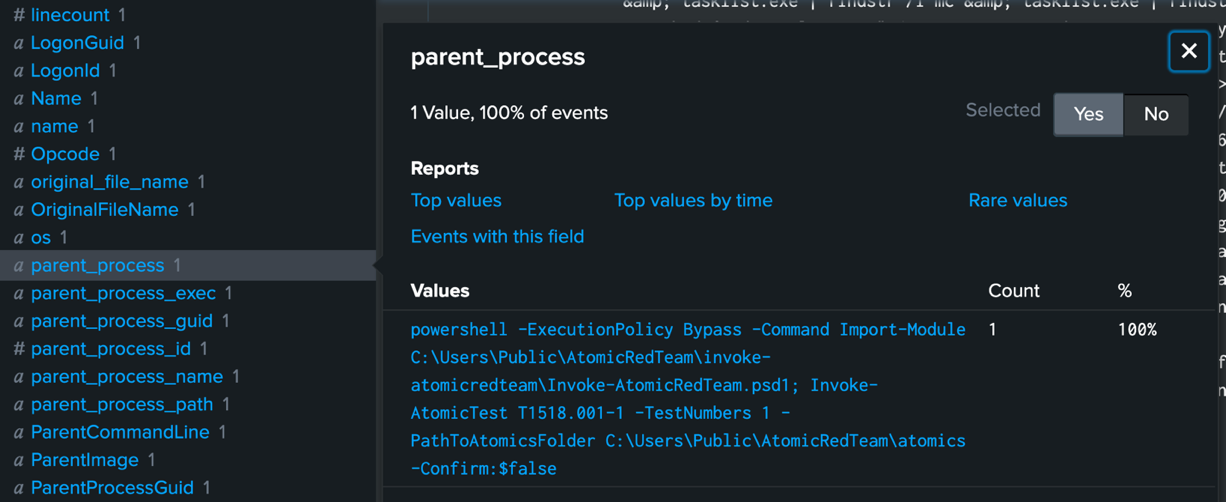
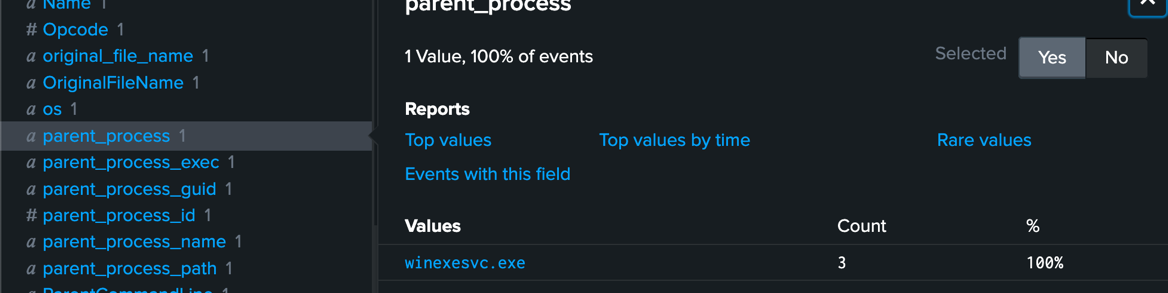
First confirm the parent process of the chained netsh.exe command — search for the Invoke-AtomicTest event and locate its parent_process field. It will show WinExeSvc.exe, confirming remote execution via winexe:
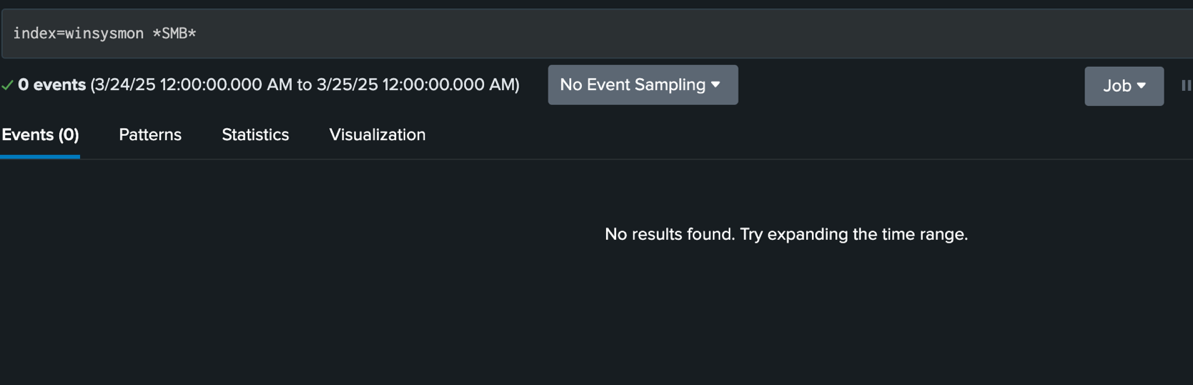
Now correlate against the packet_stream index. This query takes the timestamp of the Invoke-AtomicTest event and searches for SMB/WinRM traffic in a ±60-second window:
This confirms a connection on port 445 from 192.168.0.132 using the ip:tcp:smb protocol stack — the signature of winexe and smbclient. To generalize to any command run via winexe (your primary alert candidate):
maxsearches=13 is set above the default of 10 because more events may be returned in your index. This query/alert surfaces the suspect IP addresses from which winexe commands originated. Alert setup steps are covered in Lab S04B.
Correlate the process tree: identify that winexe spawned cmd.exe, which spawned powershell.exe, which in turn ran the enumeration commands. This parent-child chain is a strong indicator of remote execution.

Part B — Analysis & Response
Root Cause Analysis: Trace the attack chain — the victim was opened to remote execution by the setup script from Part A. The attacker (Kali) used SMB and winexe to remotely invoke Atomic Red Team, which executed a series of enumeration commands via PowerShell and Windows binaries (LOLBins).
Block the Attacker IP: As a temporary measure, block the identified Kali IP (192.168.0.132) on the victim machine. In an Administrator PowerShell on your victim Windows 10 machine:
Ensure the firewall is enabled and verify the block by retesting winexe from Kali — no response indicates the block is working:
To remove the block rules later:
Identify Configuration Changes: Start with a simple check of enabled Windows optional features:
SMBv1 (SMB1Protocol) will appear as enabled. Return to Splunk and search for encoded PowerShell commands, which were used to hide the configuration changes from Sysmon:
The parent_process field will show both the location of the executable (run from the victim's Downloads folder) and the Base64-encoded command it passed to PowerShell. Decode that Base64 string at base64decode.org (use AUTO-DETECT mode) to retrieve the original PowerShell script — this reveals the full set of configuration changes made by the setup executable from Part A.
Block Executables from the Download Folder: The attack dropped the payload into C:\Users\*\Downloads\. Use AppLocker to prevent execution from this path. Note: AppLocker path rules require Windows 10 Enterprise or Education.
Reverse Execution Changes: Run the following script in Administrator PowerShell on the victim machine. This reverses all configuration changes made by the setup executable in Part A — disabling WinRM, SMBv1/SMB2, admin shares, and firewall rules:
Verify the reversal by attempting a winexe connection from Kali — it should now fail.
Detection Engineering & Strategic Improvements
Create a Splunk Alert: Using the detection queries from the previous section as your base, save them as Splunk alerts via . Configure the alert type as Scheduled, set it to run on a cron schedule, and trigger when the number of results is greater than zero. Add actions to send an email and add to triggered alerts. Refer to the Part B lab document for the exact SPL used for alert creation.

MITRE ATT&CK Mapping: Tag your Splunk alert with T1518.001 (Security Software Discovery) under the Discovery tactic. This is the technique emulated by the Atomic Red Team test in this lab.
Strategic Improvements:
- Implement network segmentation to prevent cross-VM SMB access in production
- Deploy Splunk's ES (Enterprise Security) or the ESCU (ES Content Updates) app for pre-built T1518 detections
- Add a baseline of normal
netsh.exeusage so anomalies are easier to detect - Automate continuous ART execution in a sandbox (CALDERA, Ansible) to continuously validate your detection coverage
- Use Splunk ML Toolkit to build a model distinguishing legitimate security-tool enumeration from adversarial reconnaissance